> ## Documentation Index
> Fetch the complete documentation index at: https://dev.moonpay.com/llms.txt
> Use this file to discover all available pages before exploring further.
# Quickstart
> Build a working MoonPay off-ramp integration in your browser, from setup to a live crypto-to-fiat sale.
## Overview
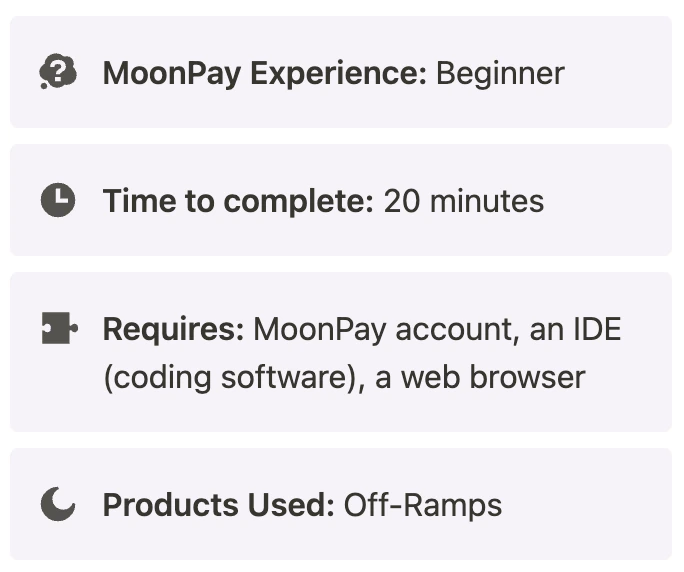 In this Quickstart, you will process the sale of cryptocurrency via the MoonPay Off-Ramp, directly from your browser.
Whether you are a complete beginner to coding or a seasoned expert, this guide will take you through all of the necessary steps to have you converting cryptocurrency to fiat in no time.
***
## What you will accomplish
In this tutorial, you will:
* Configure Off-Ramps widget in a local environment
* Create a new folder for the implementation
* Initialize the widget in a file using HTML and JavaScript
* Edit the widget parameters
* Display the fully functional widget locally in your browser
***
## Prerequisites
Before beginning, you will need:
* **A MoonPay account**: If you do not have one, set one up through our team on [this page](https://dashboard.moonpay.com/signup).
* **An IDE (coding software):** Some popular ones are [Visual Studio](https://visualstudio.microsoft.com/downloads/), [IntelliJ IDEA](https://www.jetbrains.com/idea/), and [Eclipse](https://eclipseide.org/). We will be using Visual Studio in this tutorial.
* **A web browser:** Any web browser will work. We will be using Google Chrome in this tutorial.
***
## Implementation
### Step 1: Set up a file for your integration
In your IDE, create a new file for your On-Ramp code. Ours will be called `off-ramp.html`.
### Step 2: Retrieve API keys from the MoonPay Dashboard
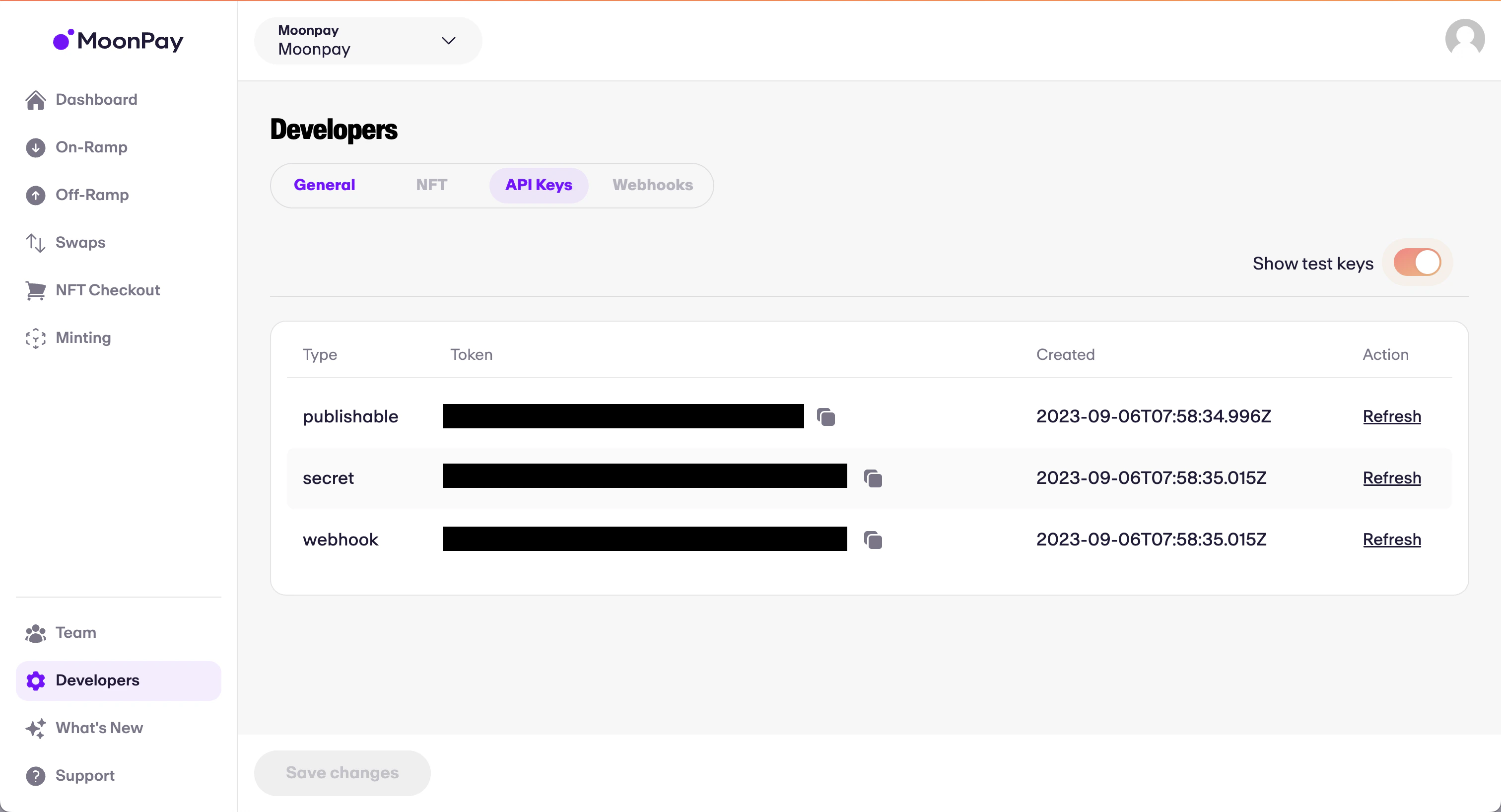
* Navigate to your [MoonPay Dashboard](https://dashboard.moonpay.com/) and log in.
* Once logged in, navigate to the Developers tab on the sidebar → API Keys.
* Here, you will be able to copy your API keys. In this tutorial, we will be using the publishable test key.
In this Quickstart, you will process the sale of cryptocurrency via the MoonPay Off-Ramp, directly from your browser.
Whether you are a complete beginner to coding or a seasoned expert, this guide will take you through all of the necessary steps to have you converting cryptocurrency to fiat in no time.
***
## What you will accomplish
In this tutorial, you will:
* Configure Off-Ramps widget in a local environment
* Create a new folder for the implementation
* Initialize the widget in a file using HTML and JavaScript
* Edit the widget parameters
* Display the fully functional widget locally in your browser
***
## Prerequisites
Before beginning, you will need:
* **A MoonPay account**: If you do not have one, set one up through our team on [this page](https://dashboard.moonpay.com/signup).
* **An IDE (coding software):** Some popular ones are [Visual Studio](https://visualstudio.microsoft.com/downloads/), [IntelliJ IDEA](https://www.jetbrains.com/idea/), and [Eclipse](https://eclipseide.org/). We will be using Visual Studio in this tutorial.
* **A web browser:** Any web browser will work. We will be using Google Chrome in this tutorial.
***
## Implementation
### Step 1: Set up a file for your integration
In your IDE, create a new file for your On-Ramp code. Ours will be called `off-ramp.html`.
### Step 2: Retrieve API keys from the MoonPay Dashboard
* Navigate to your [MoonPay Dashboard](https://dashboard.moonpay.com/) and log in.
* Once logged in, navigate to the Developers tab on the sidebar → API Keys.
* Here, you will be able to copy your API keys. In this tutorial, we will be using the publishable test key.
 ### Step 3: Insert HTML and code into off-ramp.html
* The code below will embed our Software Development Kit (SDK) directly into your HTML by way of `
### Step 3: Insert HTML and code into off-ramp.html
* The code below will embed our Software Development Kit (SDK) directly into your HTML by way of `