

Go-live requirements
To receive your production API keys, the following integration requirements
must be met.
- Multiple entry points, Sell buttons in home screen, main app navigation, and individual cryptocurrency screens. See Sell button placement.
- Amount input, Add a
maxbutton, estimate network fees, pre-fill fiat/crypto amount usingbaseCurrencyCodewithbaseCurrencyAmount, and show minimum/maximum sell limits. See Amount input screen and Minimum and maximum sell limits. - Payout method selection screen, Show all supported payout methods, payment method logos, and estimated completion times. See Payout method selection and Supported payout methods.
- Provider selection screen, Show
ID verifiedbadges for returning users, quotes from/sell_quoteusingpayoutMethod, and estimated completion times. See Provider selection. - Pre-fill the customer’s email address, Pre-fill via the
emailparameter to skip the widget login screen. See Pre-fill the customer’s email address. - Pre-fill the customer’s refund wallet address(es), Pass
refundWalletAddressorrefundWalletAddresses(withcurrencyCodeordefaultCurrencyCodewhen using the singular form), and sign URLs with your secret key. See Pre-fill the customer’s refund wallet address(es). - Handle crypto deposits, Use the SDK’s
onInitiateDeposithandler orredirectURLparameter to get deposit instructions; show the deposit details so the user can confirm. See Handle crypto deposits. - Transaction tracking, Display a toast after the user completes their transaction with a link to the MoonPay transaction tracker, or to your own history page. See Track the order status.
- Mobile app configuration, Use a fullscreen in-app browser without a nav bar, allow KYC, and allow pop-ups at the browser level. See Mobile integrations.
User journey demo
Explore the demo below for an end-to-end showcase of a well-designed off-ramp integration with a wallet partner.Implementation details
Sell button placement
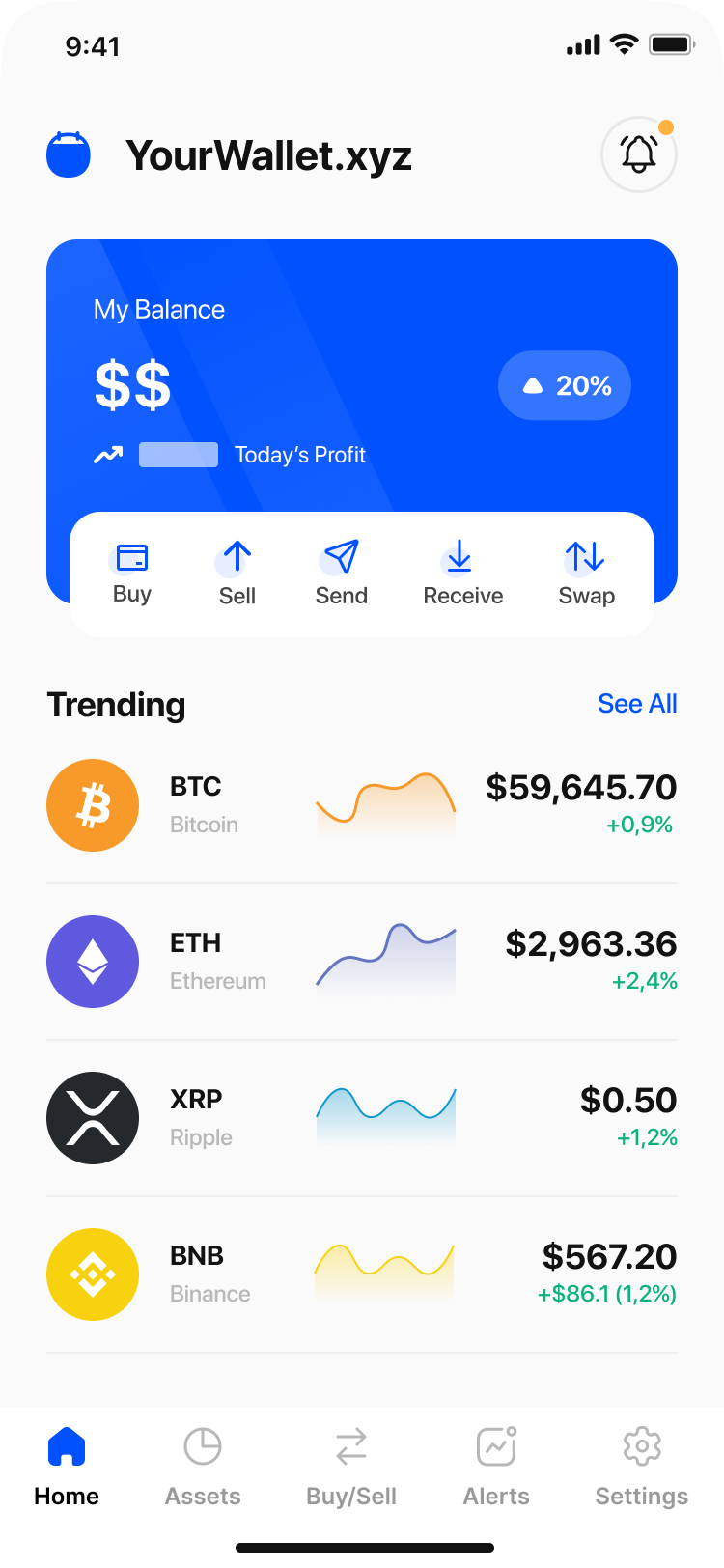
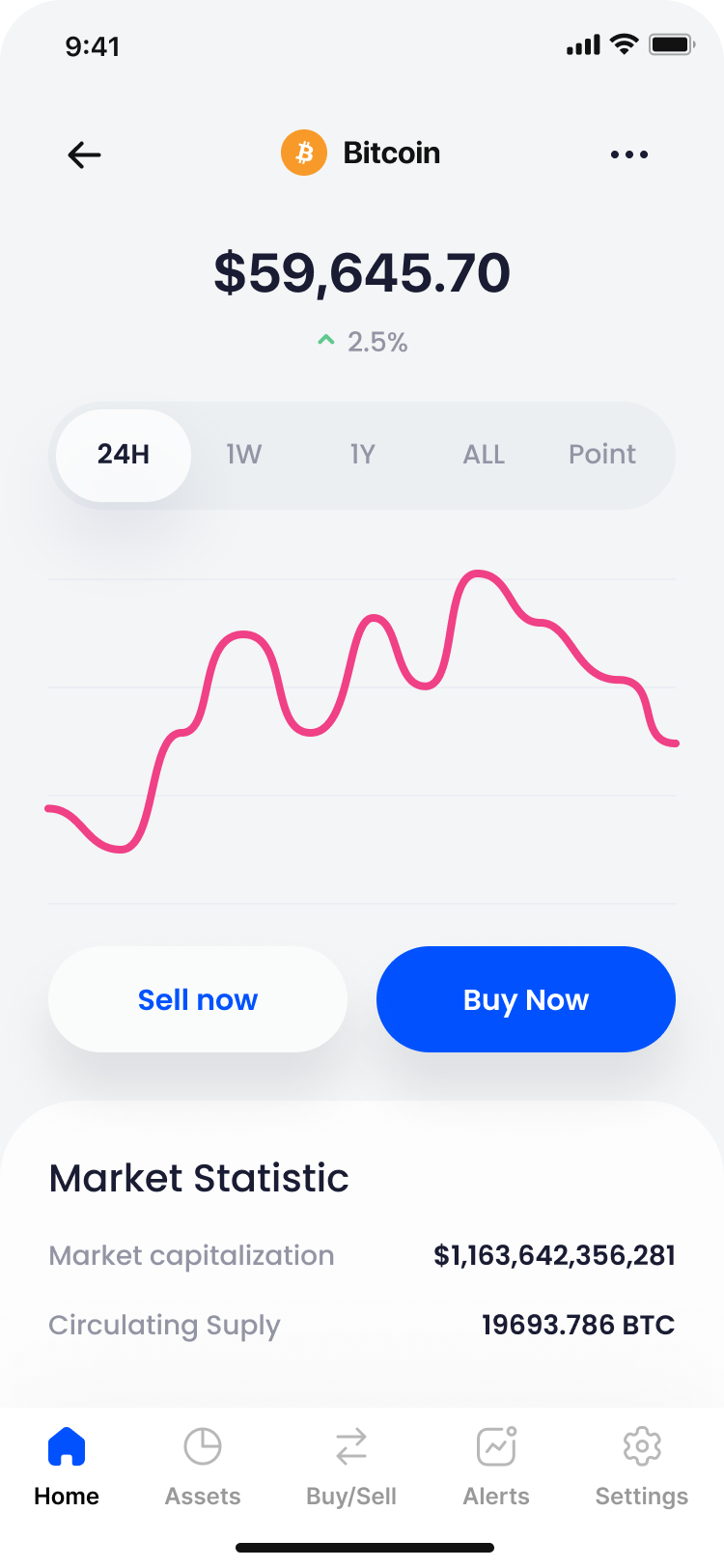
All partner apps must show sell buttons in the following areas:- Home screen
- Main app navigation
- Cryptocurrency-specific screens
Impact: A minimum 2x increase in transaction volume based on data from a
basket of partners including Uniswap.
Currency selector
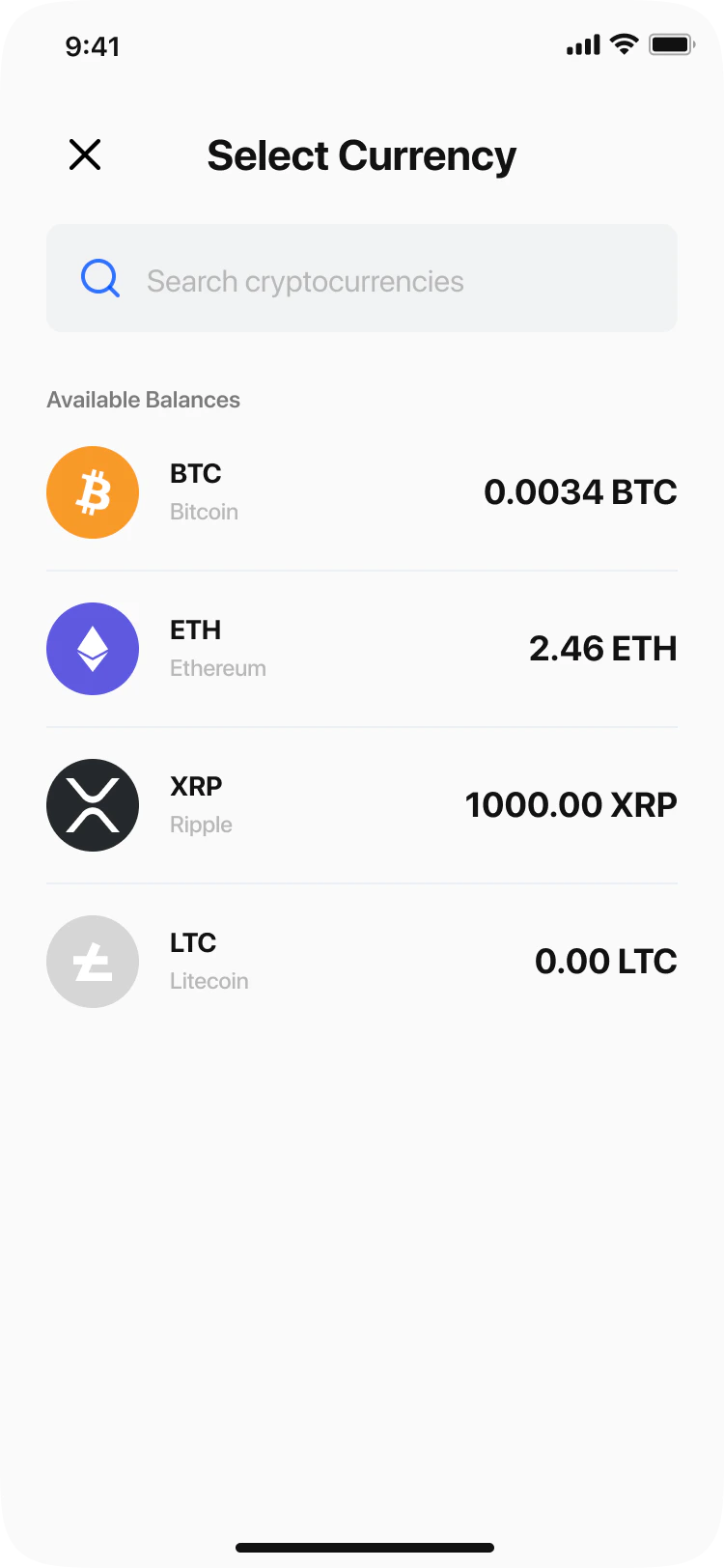
When a user clicks on the Sell button, it should be easy to find crypto to sell:- List all cryptocurrencies available to sell through your MoonPay integration
- Show balances for each cryptocurrency
- Include a search bar and filters for ease of use
- Show the currency icon, abbreviation, full name, and network of each token so users can easily browse the list
Amount input screen
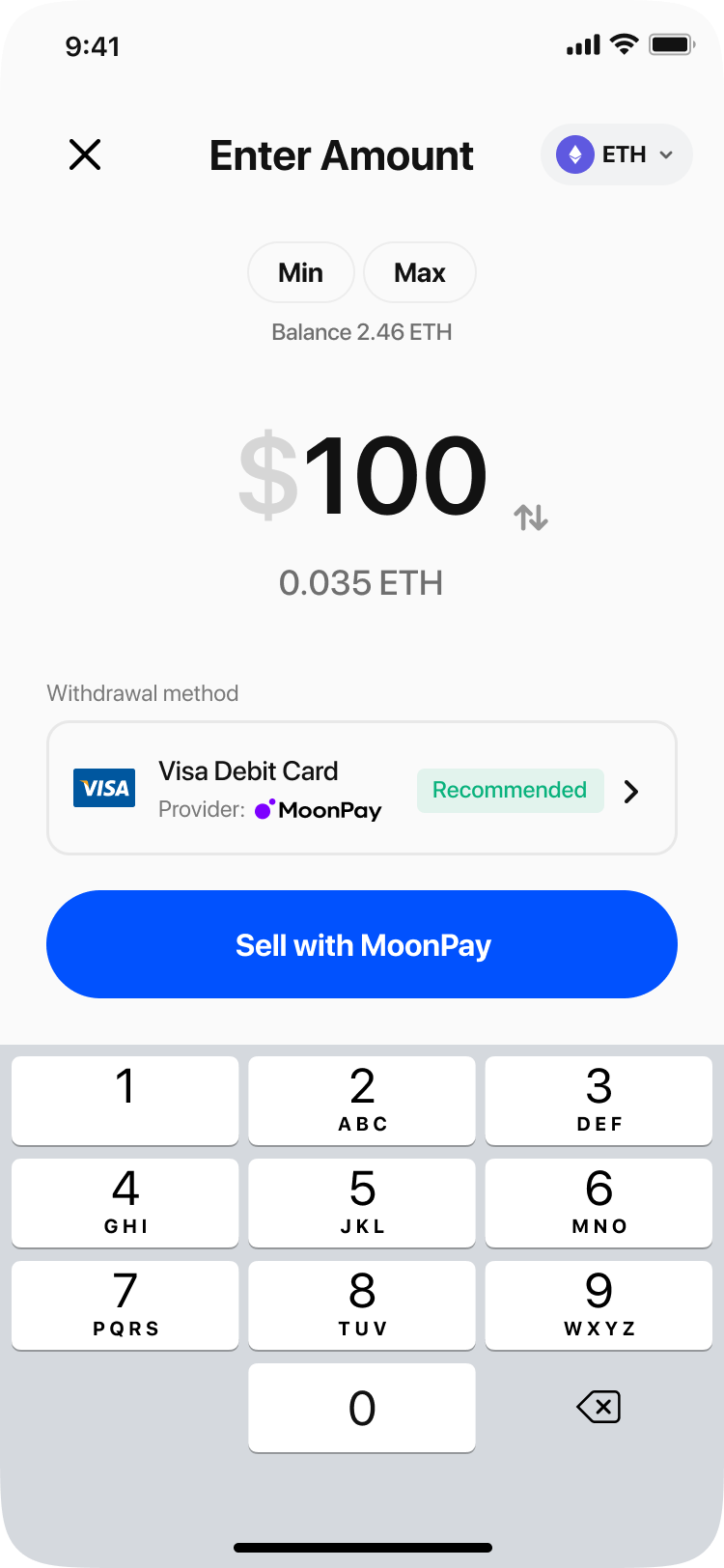
A dedicated screen in your app for the user to select the amount, crypto, and fiat for their transaction provides a smoother experience with the MoonPay widget. For partner apps that have an amount input screen, use the following design elements for ease of use:- When opening the MoonPay widget, pass the widget parameters
baseCurrencyCodewithbaseCurrencyAmountandquoteCurrencyCodeto pre-fill how much crypto the user wants to sell and which fiat they want to be paid in - Allow users to change which crypto they’re selling on this screen without leaving the flow
- Validate minimum and maximum sell amounts against our Limits endpoint
- The quote provided in this endpoint represents a platform-wide floor value, not a user-specific value
Max button
Show a max button to let users quickly sell the maximum amount available in their wallet. This max amount needs to account for any network fees required to send the crypto deposit. In other words, your app should estimate the network fee using one of the methods below, then deduct that amount from the user’s balance and show this as the maximum amount available to sell.Impact: Our data shows that a large percentage of users choose to sell their max balance. You can reduce friction for these users by adding a max button and improving network fees for sending crypto deposits.
Optimize network fees for successful sell orders
Insufficient funds to cover network fees commonly result in failed sell orders. To achieve a high transaction success rate, your app should estimate the network fee and adjust the maximum amount of crypto the user is able to sell on the initialSell cryptoscreen within your app. You can choose to show the network fee estimate or a tooltip in your app, or simply abstract this away depending on your user base.
This approach allows users to create sell transactions without needing to restart the flow if they don’t have enough crypto to cover the network fee, ultimately enhancing the user experience and improving conversion rates.
Example scenario
A user wishes to sell their full wallet balance of 1 ETH to fiat. To account for network fees, it is crucial that the partner obtains an up-to-date fee estimate using a reliable third-party API, such as the Fireblocks Network Fee API. If the estimated network fee is 0.001 ETH, the partner should pass 0.999 (1 ETH - 0.001) of ETH via the MoonPay widget to initiate the sell transaction. The partner should also make sure the user is presented with a price quote for the adjusted amount of 0.999 ETH, optionally with a clear explanation of the network fees and the reason for the difference from their wallet balance. When the send transaction is created by the partner, the network fee specified in the transaction is fixed and separate from the amount being sent. This design makes sure miners can only take the fee set by the wallet provider, and cannot exceed this amount. Therefore, MoonPay will still receive the exact 0.999 ETH, regardless of any fluctuations in network fees after the transaction is initiated.Best practices for fee estimations
Automate network fee estimates: Always automate gas fee estimates for users. Prioritizing faster transaction speeds will significantly enhance the user experience compared to choosing slower, less costly network fees. Update network estimates at execution: Always update the network fee estimation at the moment of transaction execution. This practice helps to account for any potential spikes in network fees that might occur since the transaction was initiated. Consider transaction speed: While opting for a faster transaction speed generally prevents delays, there may be situations where network fees are exceptionally high. In such cases, selecting a slower option may be more cost-effective. If you choose this route, make sure users are informed that their transaction will take longer to complete.Minimum and maximum sell limits
For partner apps that have an amount input screen, make sure the experience between your app and the MoonPay widget stays smooth by checking entered amounts against our GET /v3/currencies endpoint. Widget errors caused by invalid amounts will require the user to re-enter the amount to sell, which adds another step and impacts the user experience.Impact:
- Partners that offer transactions over $10K see a 45% higher median for completed transaction volume.
- Partners also see 3% of their total completed volume from transactions over $10K.
Payout method selection
For partner apps with a payment method selection screen:-
Show all payment methods supported by MoonPay, depending on the user’s region and currency
- All available payment methods per transaction type, region, and fiat currency can be surfaced using the
/payment_method_configendpoint
- All available payment methods per transaction type, region, and fiat currency can be surfaced using the
-
Show payment method details that are returned in the
/payment_method_configresponse- Use payment method logos
- Show estimated transaction completion times
-
Pre-fill the
?paymentMethodwidget param with the selected payment method
/payment_method_config endpoint to surface all available payment methods. Otherwise, you’ll need to periodically update your app as we release new payment methods:
- Update
?paymentMethodwhen calling the/buy_quoteendpoint and showing the widget - Add the new payment method as an option in your app, including the logo, estimated transaction completion times
- Any other payment method-specific requirements
Provider selection
For partner apps that offer ramps providers other than MoonPay, display key context on a provider selection screen, including:ID verifiedbadge for users who have completed KYC- Quotes from our
/sell_quoteendpoint usingpaymentMethod - Supported payment methods and their logos
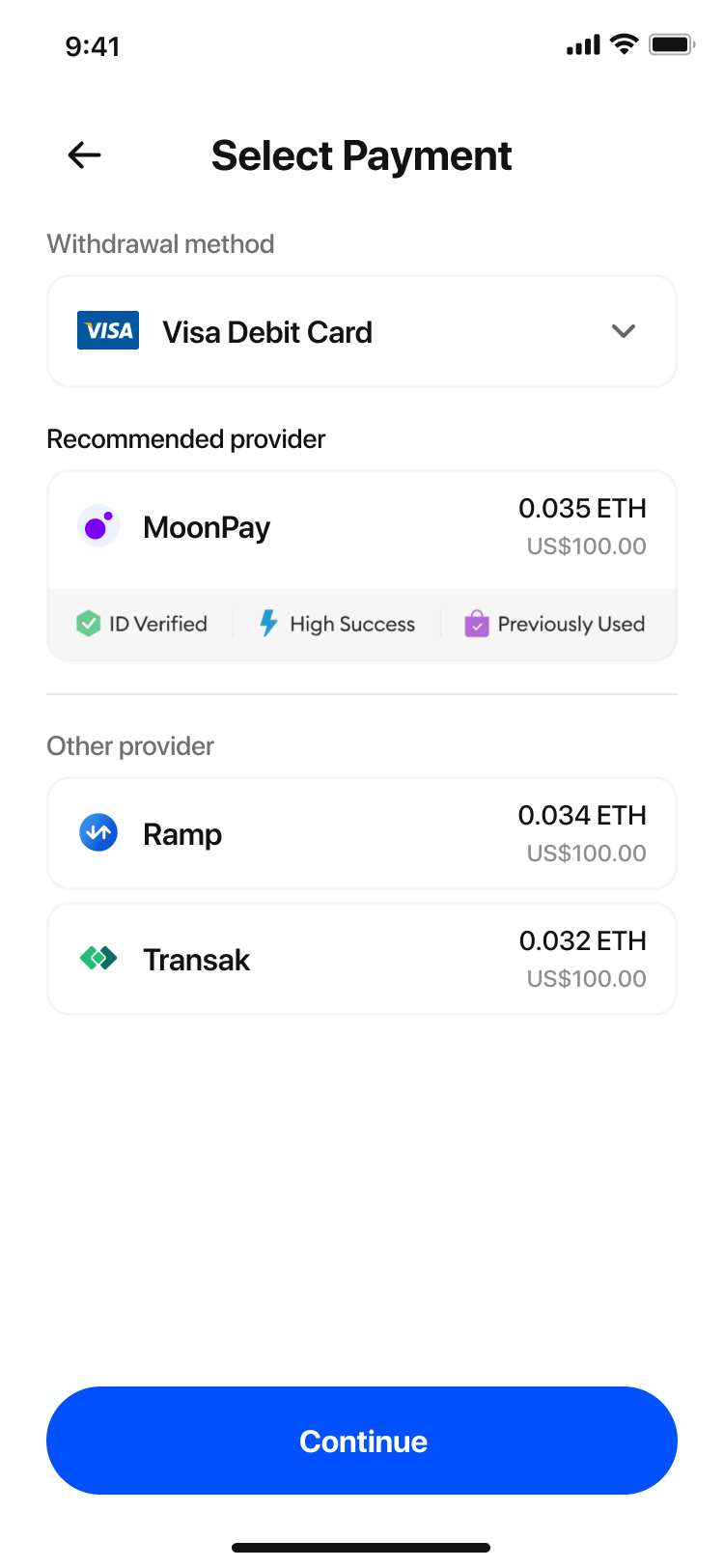
ID verified and previously used badges
ID verified and Previously used badges give returning users a smooth experience by indicating that their KYC has been completed. Our data show that returning users can be less price-sensitive than new users, preferring a more convenient checkout experience with fewer steps.
Call our GET /v3/customers/badges endpoint with the customer’s wallet address and we will return the customer’s KYC status which you can use to show the ID verified badge.
Impact
- User retention rates are 70% higher when they know they’ve transacted before.
- 30% of wallet address that get passed to our Badges endpoint are already KYC’d.
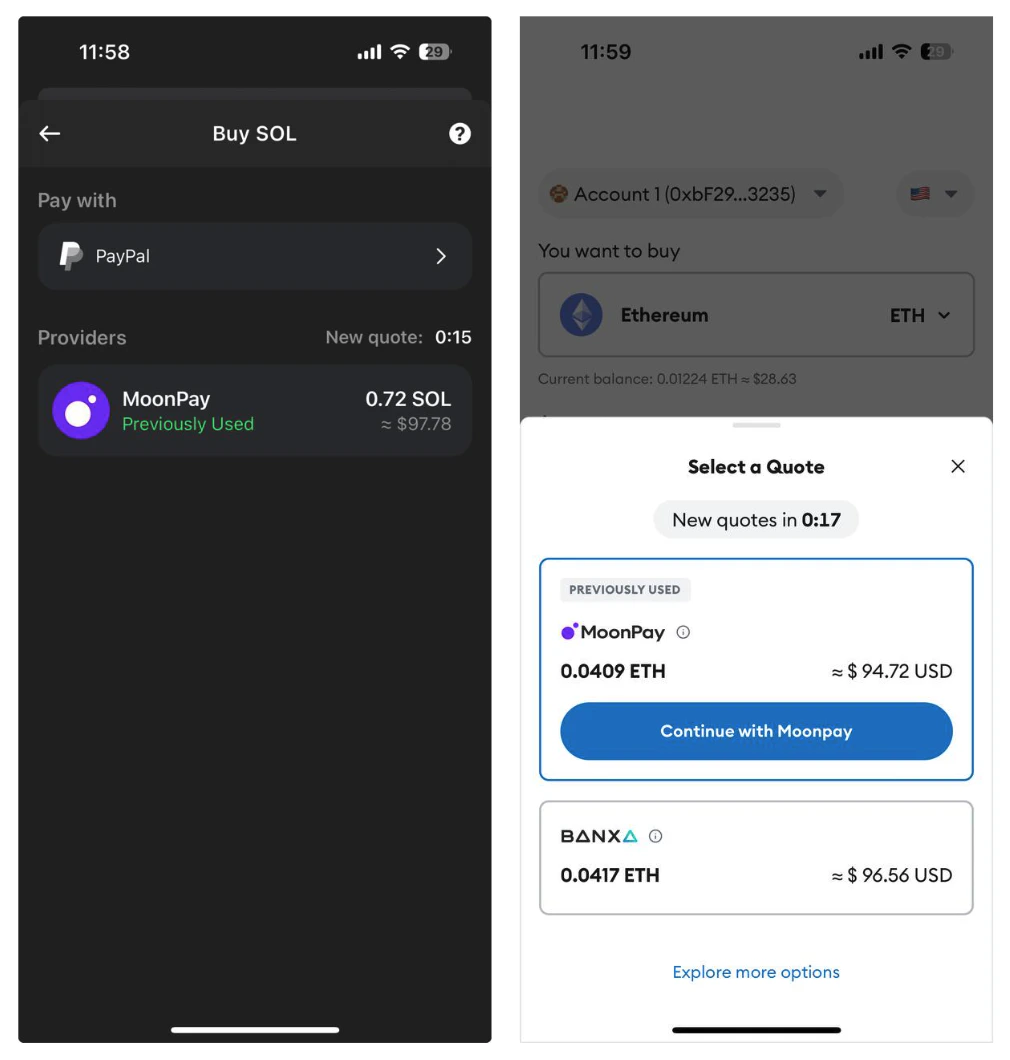
Payout method logos
Build customer trust by displaying the supported payment and payout method logos for your integration. For customers new to crypto, these familiar payment methods indicate a safe checkout process. Review the supported payment / payout methods below:Loading screen
Use logos to guide the user when redirecting the user to MoonPay. Before opening the MoonPay widget, show a loading screen with both your logo and MoonPay’s logo to build user trust and set expectations about the user journey.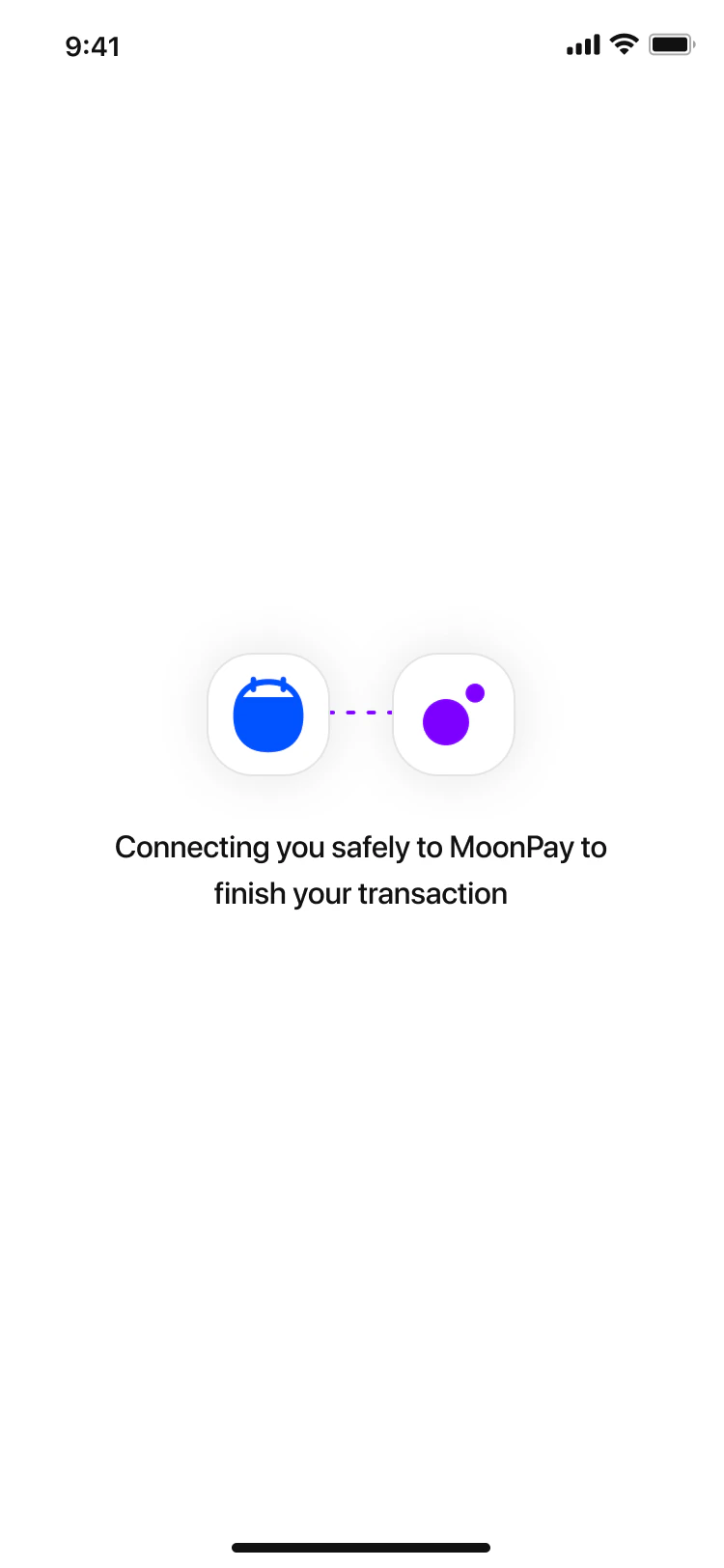
Skip the amount
By default, the first screen in the MoonPay widget asks the user to confirm the amount of crypto to sell. If your app has an amount input screen, you can skip the amount screen in the MoonPay widget for a smoother end-to-end customer journey and increase conversions by 6%. Pass the following widget parameters:baseCurrencyCode + baseCurrencyAmount
Impact
- Skipping the initial amount screen increases conversions by 6%.
Login options
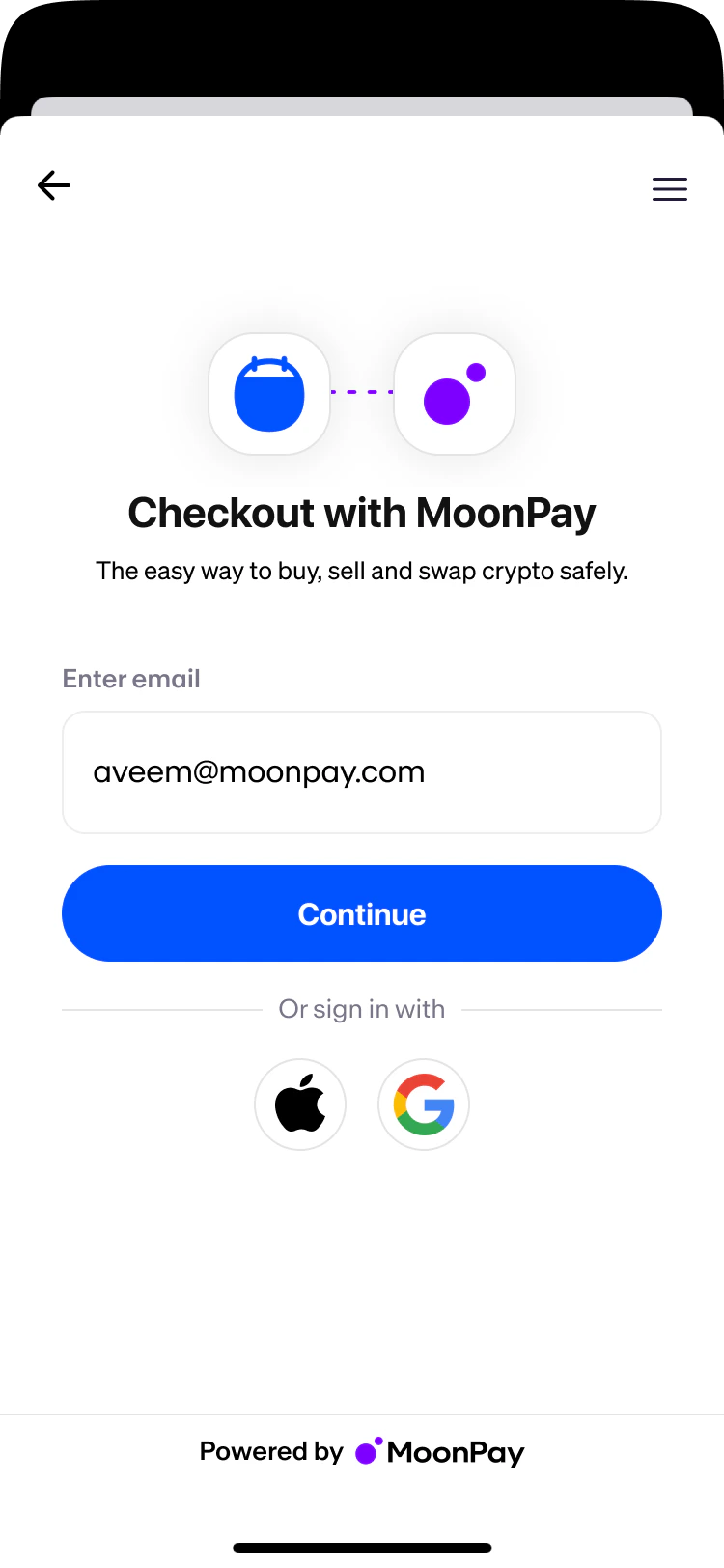
Pre-fill the customer’s email address
Partner apps that know the user’s email address must pre-fill the customer’s email address by passing theemail widget parameter, so the customer won’t be prompted to enter one. The widget will skip to the MFA code screen.
Returning customers that are logged in are 5% more likely to complete a transaction than returning customers that are not logged in. By pre-filling the customer’s email address, you can capture some of this shortfall and increase transaction volume.
Impact
- Returning customers that are logged in are 5% more likely to complete a transaction.
- For new users who haven’t transacted before, this is even higher at 25% more likely to complete their first transaction.
Social sign-in
If your app doesn’t use email addresses to identify users, and usesSFSafariViewController or Chrome Custom Tabs, contact your MoonPay team to enable social sign-in. Compare in-app browser features.
Pre-fill the customer’s refund wallet address
Partner apps that know the user’s wallet address(es) must use the refundWalletAddress or walletAddresses parameters to make sure any refunded crypto gets sent back to the user. When using the refundWalletAddress parameter, you must also:- Pass baseCurrencyCode or defaultBaseCurrencyCode and
- Sign URLs server-side
Pre-select the payout method
Use the paymentMethod parameter to pre-select the user’s payout method and match what they chose in the partner app.Handle crypto deposits
To complete a sell transaction, the customer deposits their cryptocurrency to a MoonPay-owned wallet as the last step of their journey. In the default sell journey, users will see a QR code and instructions in the widget to manually deposit their crypto. For the transaction to be completed successfully, they must make sure the amount, cryptocurrency, network, and wallet address are all correct in their deposit, which is error-prone and routinely causes users to drop off. For this reason, remove this point of friction by handling the crypto deposit usingonInitiateDeposit() or ?redirectURL. This is highly recommended, as it provides a better user experience and improves conversion.
| Method | How to implement |
|---|---|
onInitiateDeposit()Recommended | Get deposit instructions via SDK event handler, then send deposit using your app’s native send function |
?redirectURLRecommended | Get deposit instructions via URL parameters, then send deposit using your app’s native send function |
| Manual deposit with QR code | Default flow; no additional implementation steps |
Example journey using onInitiateDeposit() or ?redirectURL
When you get the deposit instructions using onInitiateDeposit() or ?redirectURL, the user journey will be as follows:
- Go through the sell order flow in the widget
- Return to your app by clicking the
Send with <partner name>button - Confirm the sell transaction in your app
- Confirmation screen links to a transaction history page
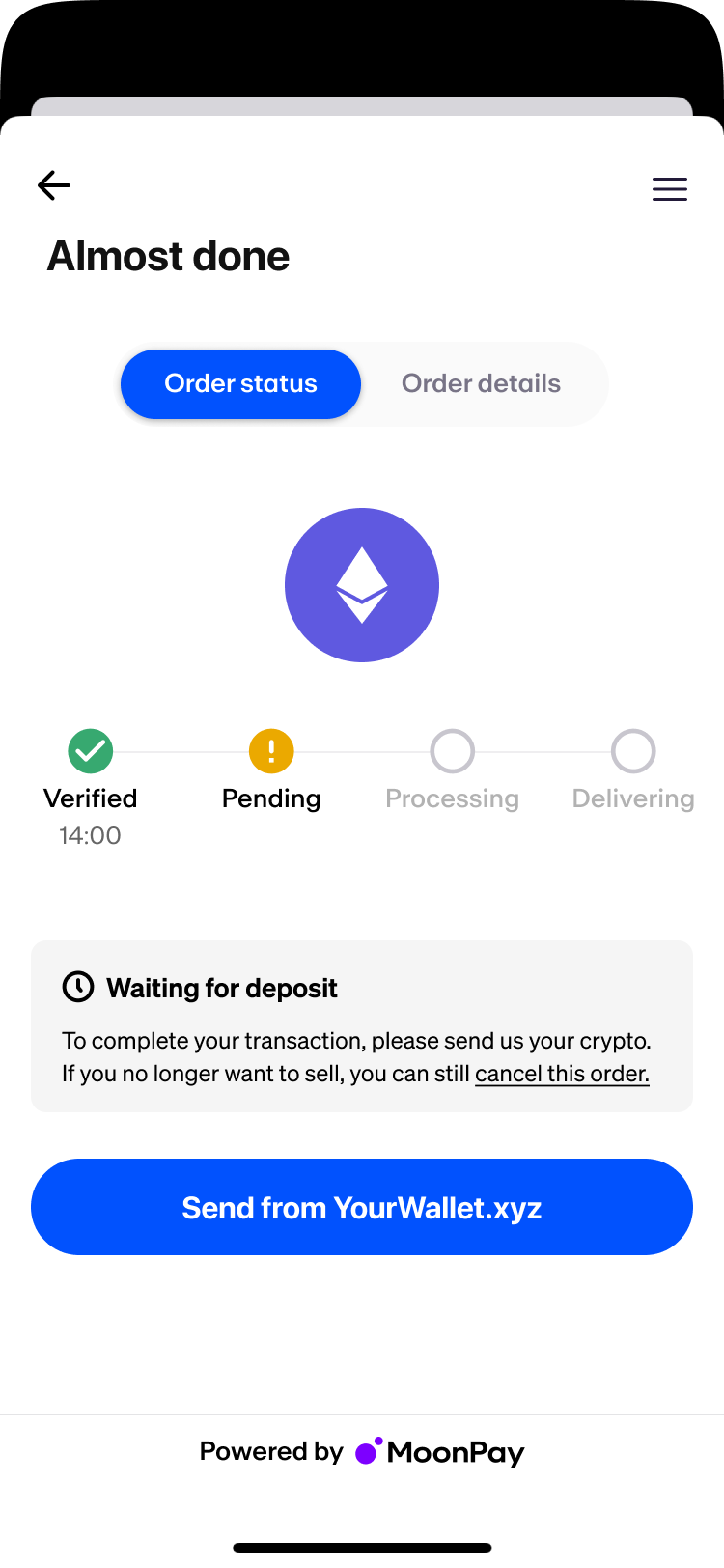
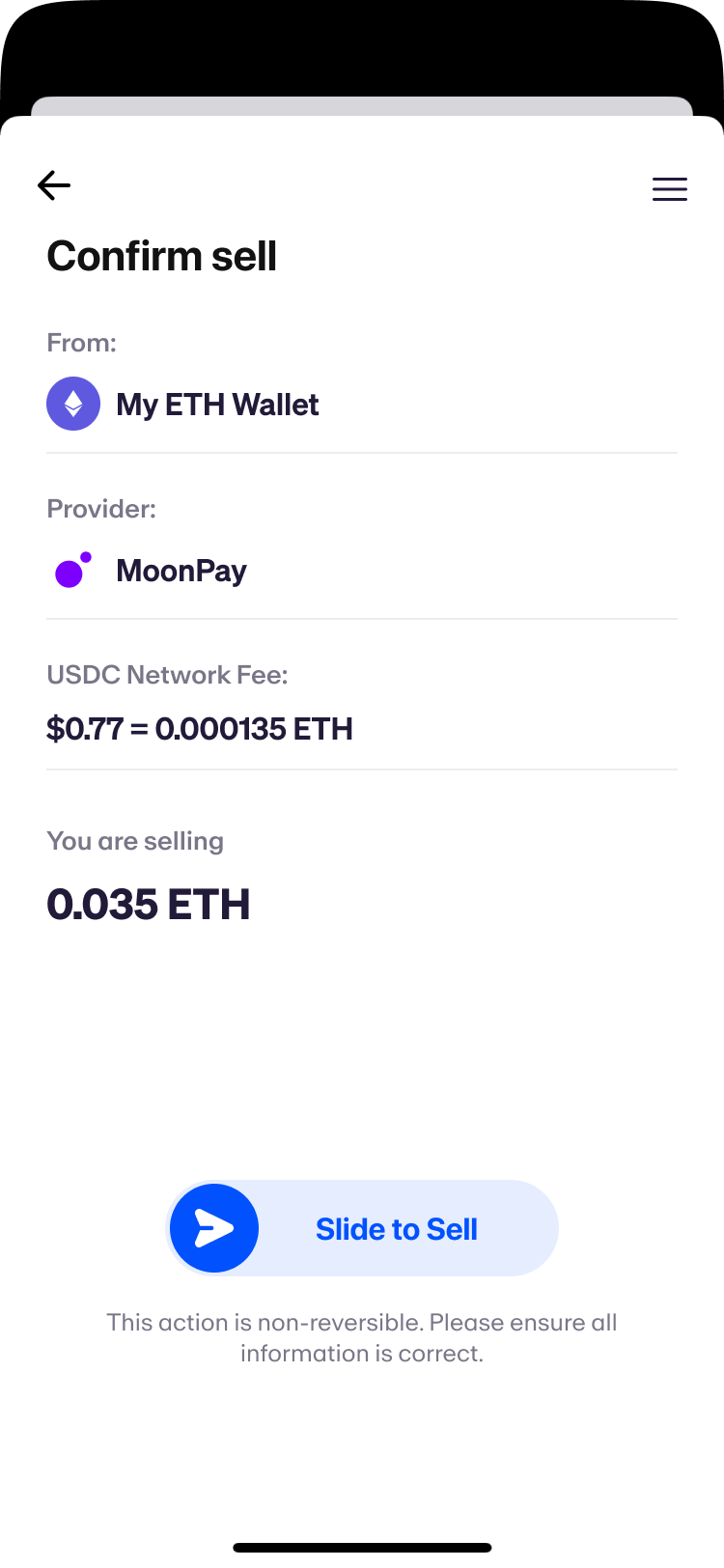
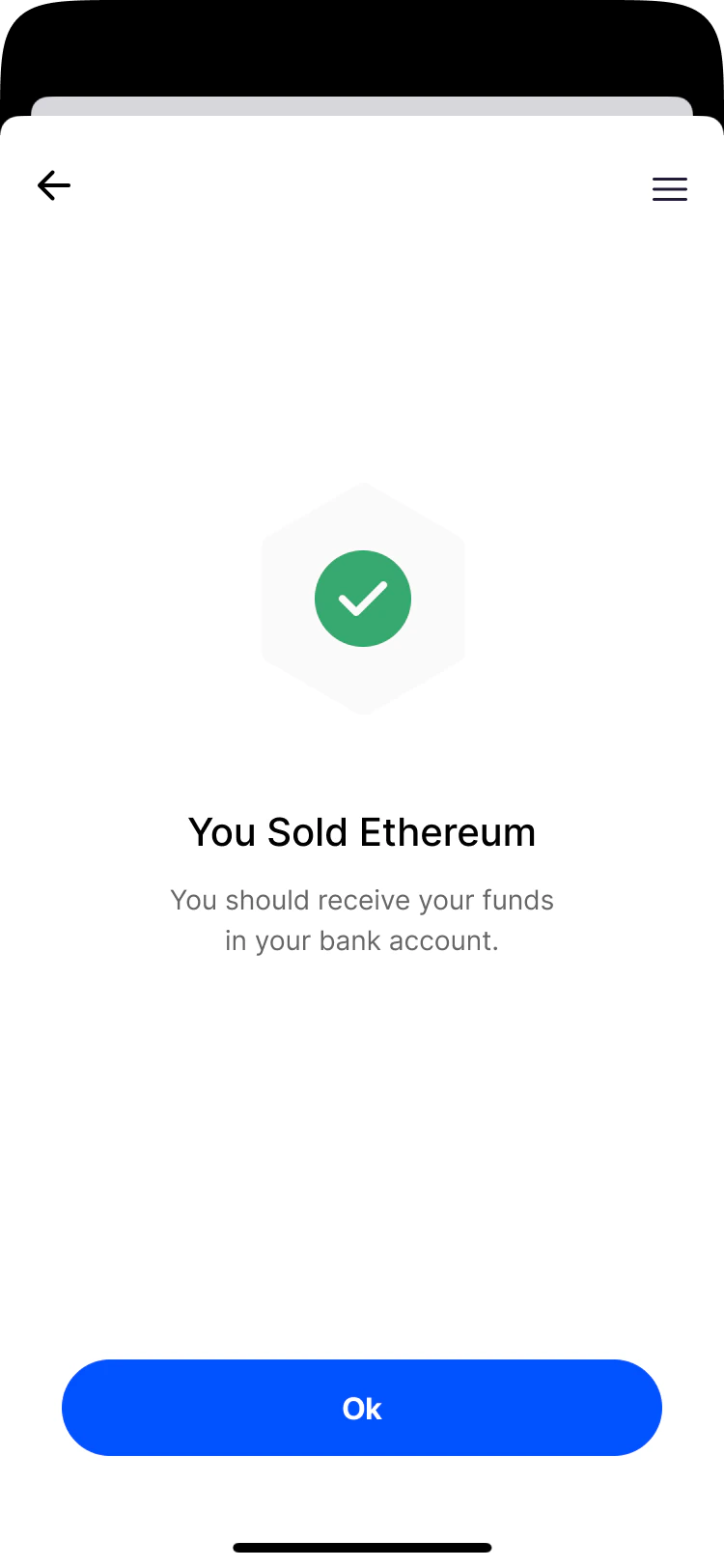
Method 1: Use the SDK’s onInitiateDeposit event handler
When you register for the SDK event handler onInitiateDeposit, the MoonPay widget will instruct your application to initiate the deposit.
At the end of the sell flow, the user will use the Initiate deposit button to continue making the deposit in your app. The deposit instructions, including the transaction ID, base currency code, base currency amount, deposit wallet address and, if applicable, the respective tag will be sent from the widget to your app. Your app will make the deposit and return the corresponding deposit ID from your side.
Method 2: Pass the redirectURL widget parameter
PassingredirectURLwill show a button at the end of the sell flow that saysSend with <partner name>, which the user clicks to be redirected back to your app. The deposit instructions, including the transactionId, baseCurrencyCode, baseCurrencyAmount, depositWalletAddress and, if applicable, depositWalletAddressTag, will be appended as URL parameters. List of off-ramp parameters
redirectURL supports HTTPS or Universal/App Link URLs. Custom-scheme links (e.g., myapp://…) are not supported.
When using redirectURL with the off-ramp, you must set up webhooks or API
calls to verify the deposit instructions. Webhooks
overview.
Manual deposits
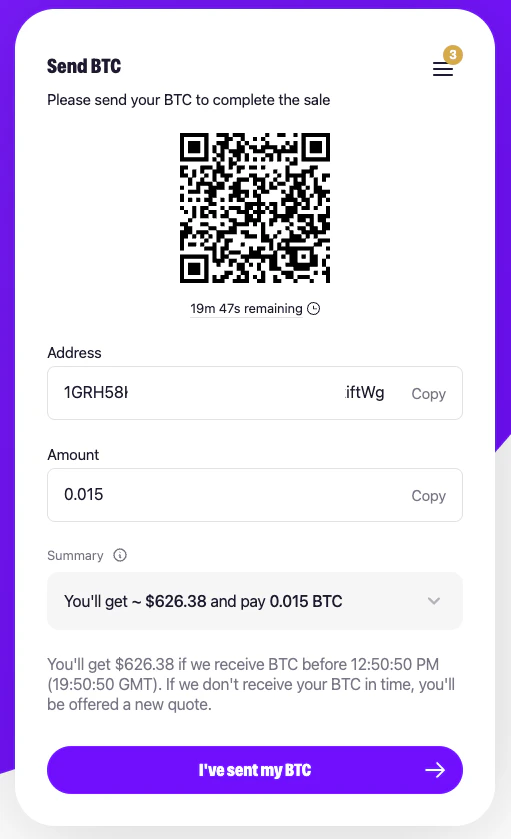
If you don’t useonInitiateDeposit or redirectURL, the widget will display a QR code and deposit instructions for the user to manually deposit their crypto to a MoonPay-owned wallet. However, it’s highly recommended to use these options over manual deposits, as this significantly improves the user experience and sell transaction success rates.
Track the order status
All partner apps must provide some kind of transaction tracking, whether a toast message that links to the MoonPay transaction tracker or your app’s own transaction history screen. After a user completes the sell flow in the MoonPay widget, it’s crucial for them to be able to monitor their order’s progress and understand its status. Increased transparency results in greater user trust and returning users who are 13% more likely to return and complete another transaction.Impact
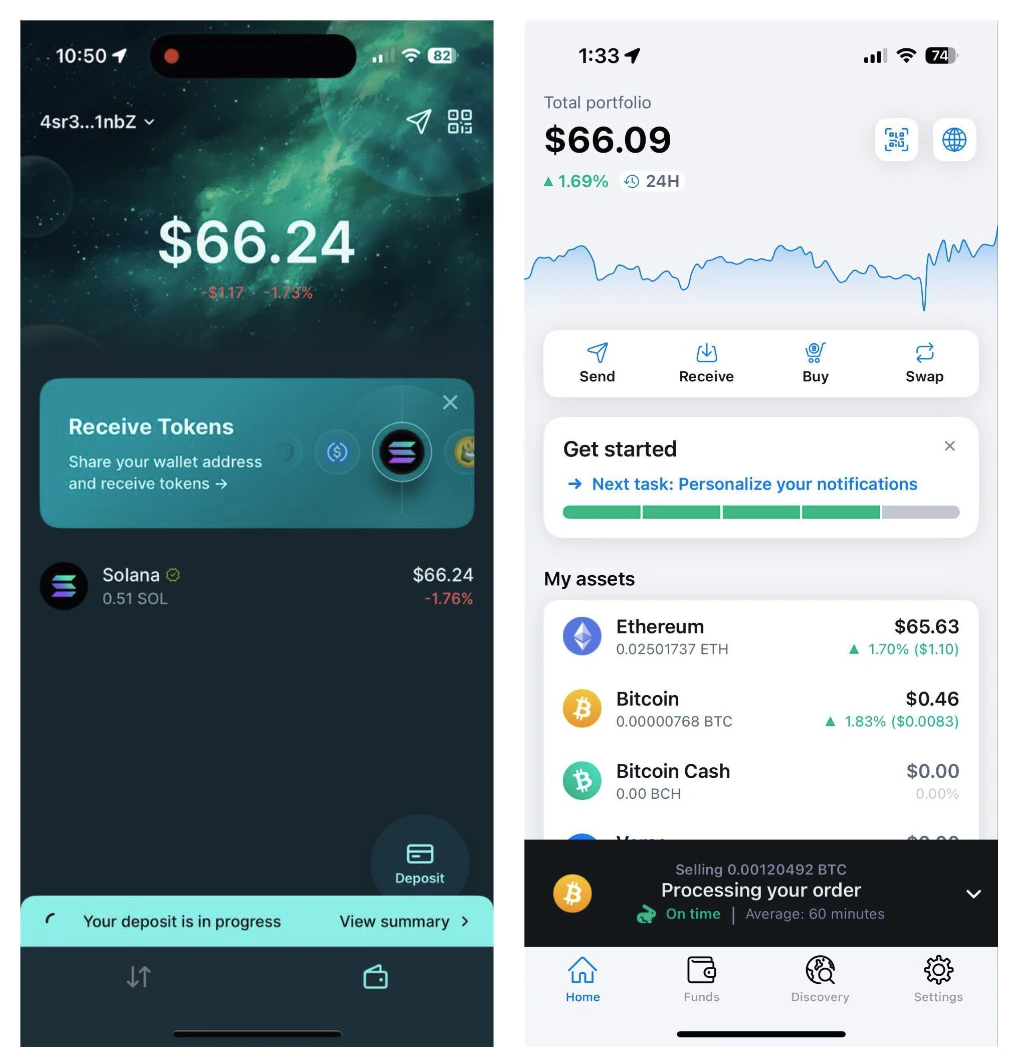
Increased transparency results in greater user trust and returning users who are 13% more likely to complete another transaction.- Transaction tracking toast message: After a user completes a transaction, show a toast message that persists until the crypto has been received in the user’s wallet. When clicked, either the MoonPay transaction tracker or your app’s transaction history page should open.
- Partners not able to use webhooks for this toast message should implement a transaction history screen and use API calls to retrieve transaction data on-demand.
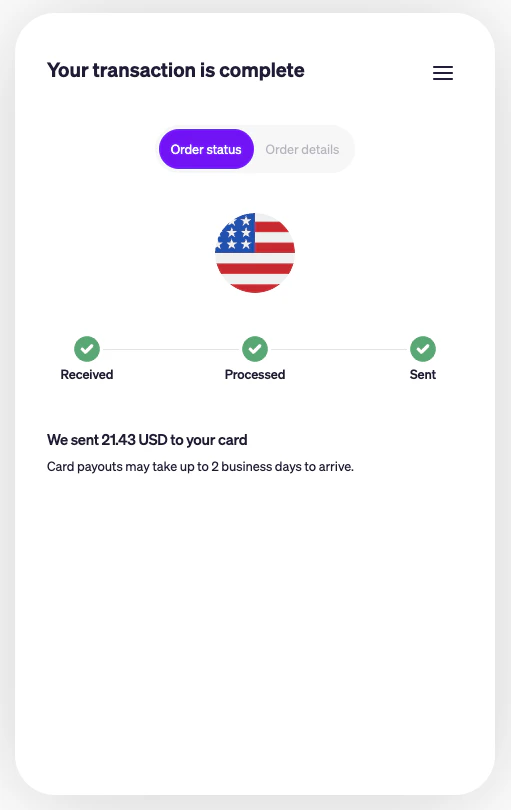
- Use the MoonPay transaction tracker: We return the transaction tracker URL in our webhooks and API in the
data.returnURLobject. Example tracker URL:https://sell.moonpay.com/transaction_receipt?transactionId=cd08a180-6efe-4eb4-b51a-075d945e732c. You can optionally pass theapiKeyparameter to enable your custom theme on the tracker.
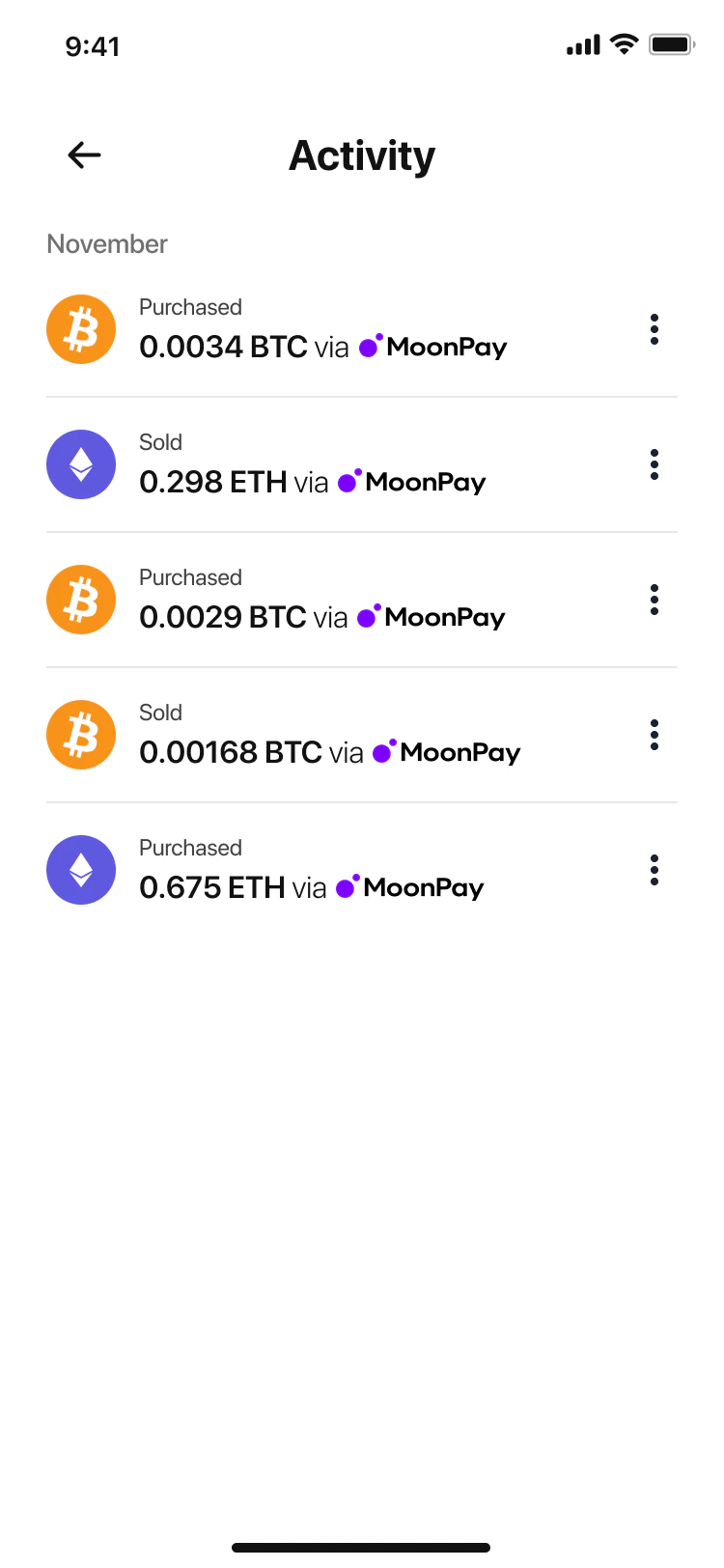
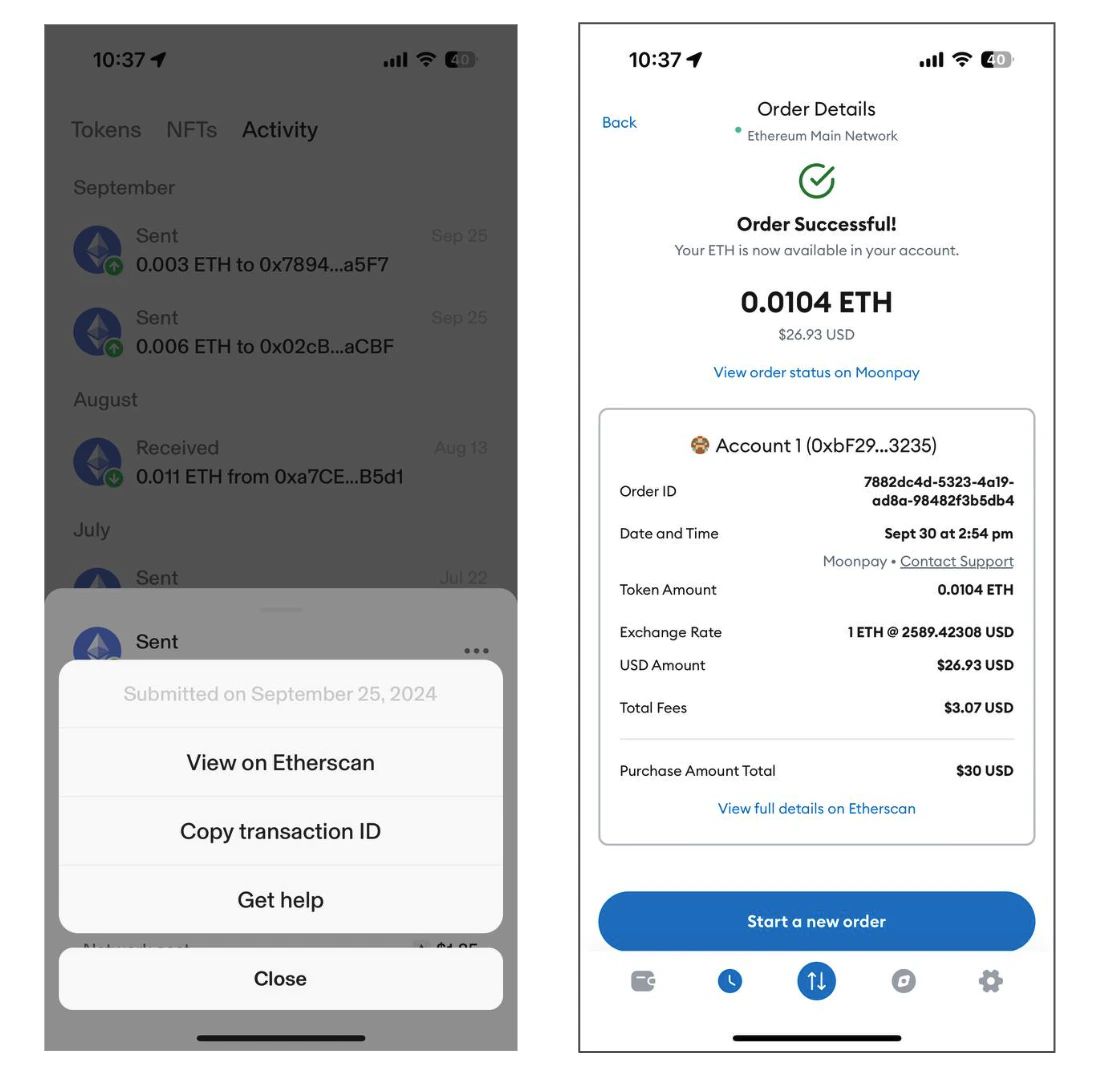
- Use your own transaction tracker: You can optionally create your own transaction tracking screen that shows transaction data from our API and webhooks.
API and webhook objects for transaction tracking
Additional examples and details for all parameters can be found in our transaction API documentation under the 200 Responses section.| Object | Description | Notes |
|---|---|---|
cryptoTransactionId | On-chain transaction hash that can be searched on the corresponding blockchain explorer | |
stages and stages.failureReason | Order stage and failure reason. Failure reason will be set only if the stage is failed. | Possible values |
id | Unique MoonPay transaction ID that can be added to the MoonPay transaction receipt URL | |
externalTransactionId | Your transaction identifier that was passed in the externalTransactionId widget parameter. This identifier will be present whenever MoonPay sends you transaction data. | |
createdAt | Timestamp of when the transaction was created | |
baseCurrency.name and baseCurrency.code | Cryptocurrency name and code, e.g. Ethereum and ETH |
Mobile integrations
All partner mobile apps must follow these guidelines for setting up in-app browsers.In-app browser setup
Use a full screen in-app browser and remove the navigation bar to provide a more native user experience.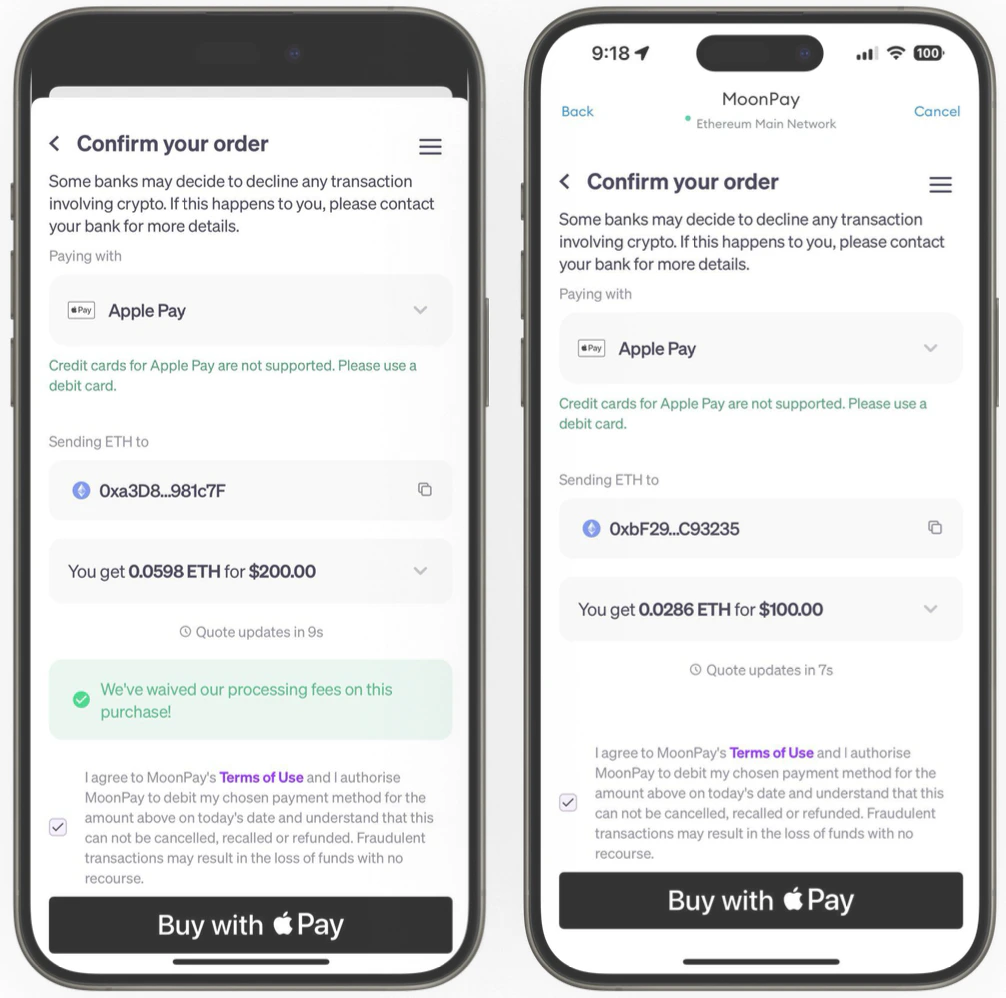
Step 1: Screen implementation
React Native example
Step 2: Register screen as a modal in the navigator
This enables the widget to slide up from the bottom of the screen.React Native example
Step 3: Configure the screen
Configure the screen so that all payment methods and KYC steps work correctly:- Allow pop-ups at the in-app browser level so the customer can use PayPal without seeing an error
- Follow the App Requirements for KYC section below so the customer can upload their KYC documents and complete a selfie check.
App requirements for KYC
These requirements make sure that customers can complete each KYC step, including uploading documents and doing a selfie check. Failing to follow these steps will cause new customers to drop off, as they won’t be able to finish KYC or make a purchase.General app requirements for all implementations
All partner apps should ensure the following:Feature-Policyheader for your webpage / frame or any other container has no restrictions for initializing camera like valuecamera 'none'.Permissions-Policyheader doesn’t restrict access to a camera and microphone (for some cases) and if allow is set check for"camera; microphone"values.- When using iOS WKWebview you may need to set
allowsInlineMediaPlaybacktotruein theWKWebViewConfigurationused in your app. This adjustment ensures that media content, like a camera feed, can be displayed properly within the web view, rather than forcing full-screen playback. - Your website is being run on a secure
httpsconnection.
WebView requirements
Partner apps that useWebView should ensure the following:
- The web view is able to access device local storage and initialize camera (for older iOS versions, the camera can be accessed only from Safari browser or WebView with
SFSafariViewController) - HTML5 video playback is allowed (
<video>tags are being used to send instructions): if video-instructions are not played, try usingWebChromeClientto enable video playback - Autoplay in fullscreen mode is disabled and
allowsInlineMediaPlaybackis set astruefor WebView - The selector file is implemented on your side (required for KYC document uploads)
Iframe requirements
Partner apps that useiframe should ensure the following:
- Parent page header has no restrictions for initializing the camera, e.g.
camera=()- Parent page can alternatively include
camera=*in the Permissions-Policy header
- Parent page can alternatively include
- The iframe allow property has
allow="accelerometer; autoplay; camera; encrypted-media; gyroscope; payment"
Feature comparison
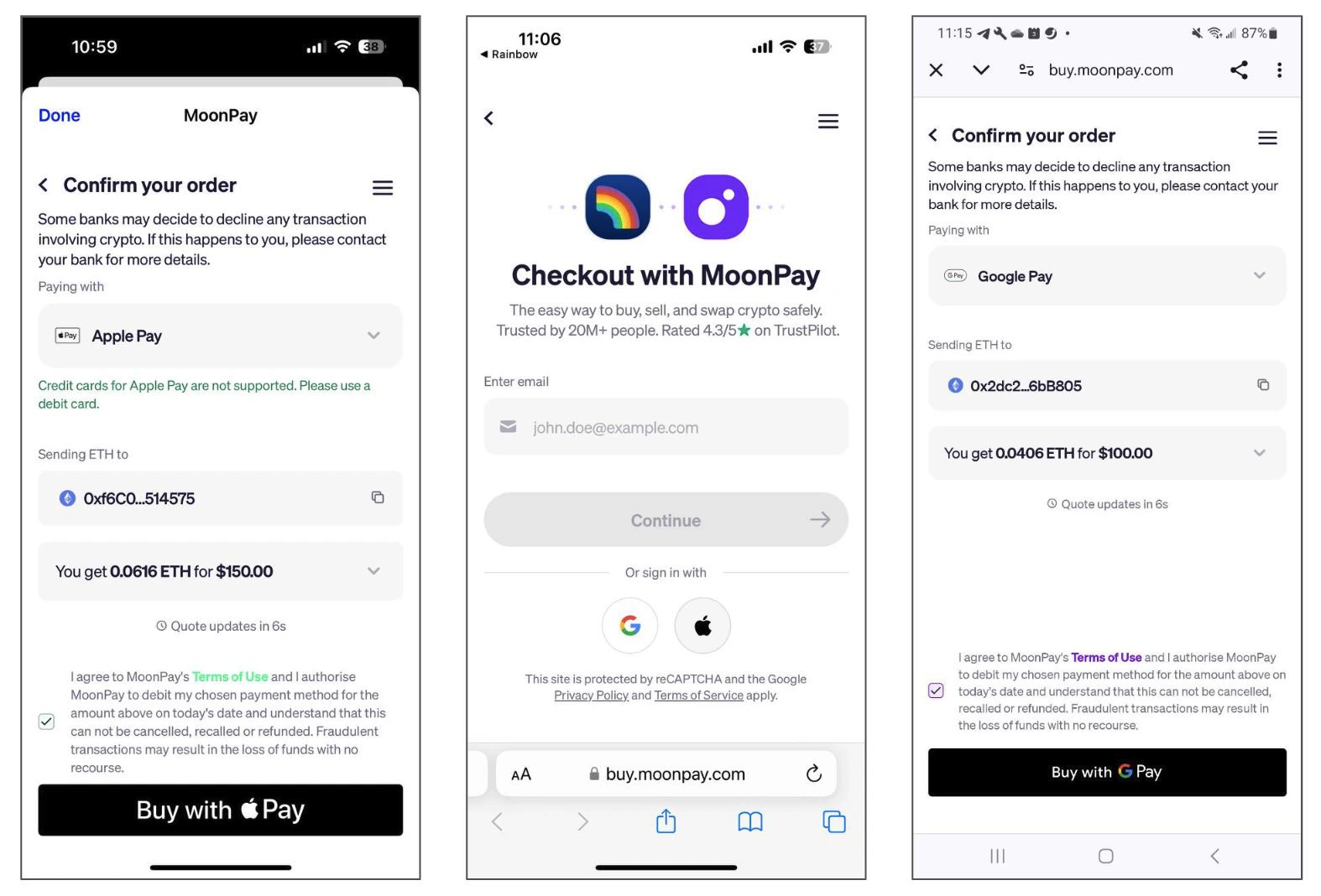
When choosing what type of in-app browser to use, review the features that are compatible with each. Note that certain mobile payment and social sign-in configurations are not compatible with certain in-app browsers, for exampleWebView is not compatible with Google Pay and Google sign-in.
| Feature | Chrome Custom Tabs | SFSafariViewController | WebView | Iframe |
|---|---|---|---|---|
| Apple Pay | ❌ | ✅ | ✅ | ❌ |
| Google Pay | ✅ | ❌ | ❌ | ❌ |
| Apple sign-in | ✅ | ✅ | ✅ | ✅ |
| Google sign-in | ✅ | ✅ | ❌ | ✅ |
| SDK events | ❌ | ❌ | ✅ | ✅ |
Customize logos and themes
Custom logos
Contact your MoonPay team to customize the logos in your integration. Provide 2 logos in jpg or png formats:- 1 square logo for the widget login screen
- 1 rectangular logo for transactional emails
Custom themes
Customize your widget’s theme in your MoonPay dashboard. Themes are tied to API keys and will be applied whenever you pass your API key to the MoonPay widget and / or transaction tracker.Impact: Users are 20% more likely to get past the code (OTP) verification screen when the MoonPay widget has custom theming.